
MyFileKit guide · 6 min read
How to Remove a Background for Product Photos
A practical guide to clean, transparent cutouts for product listings, profiles and social posts.
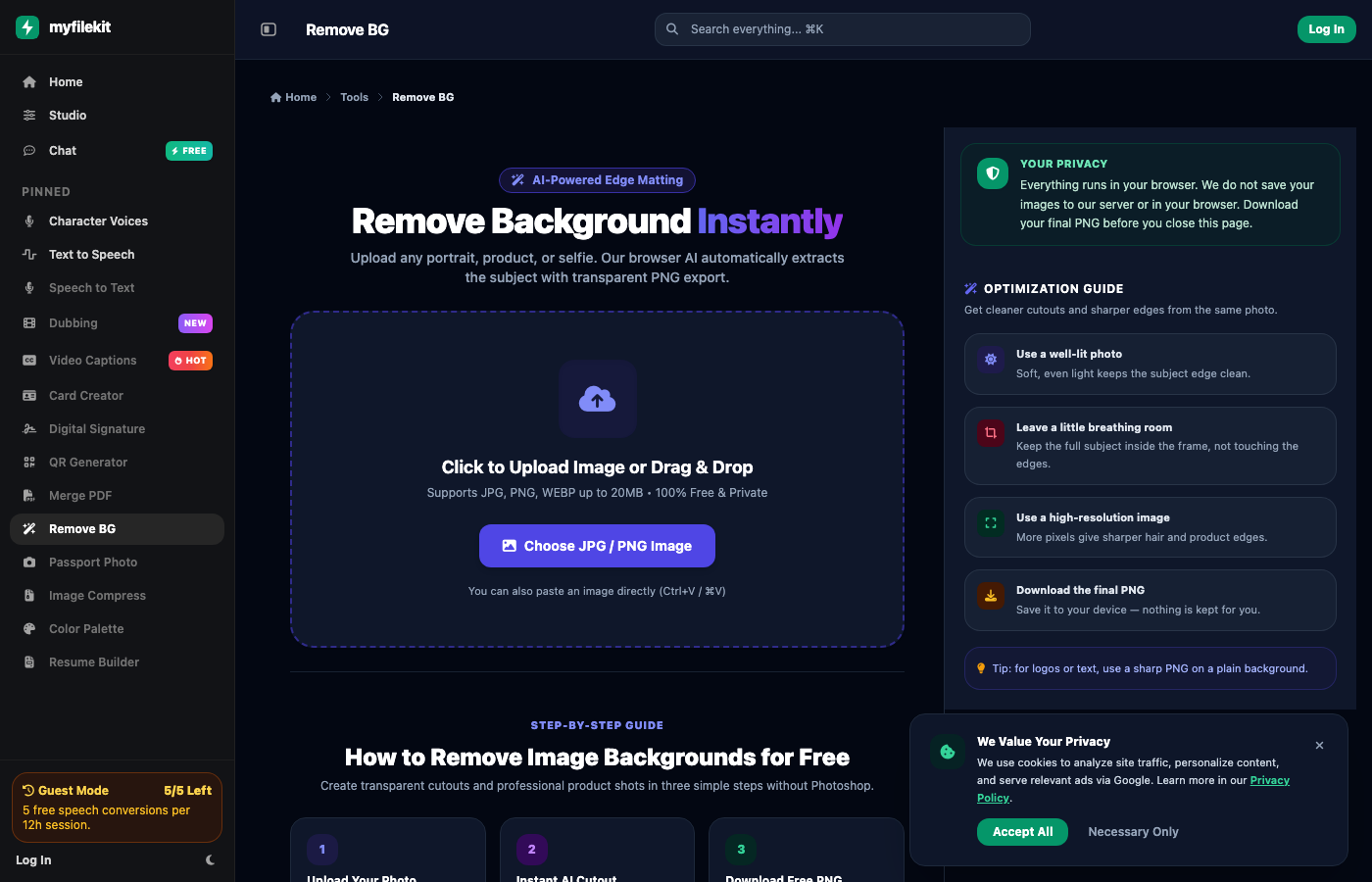
A clean cutout makes a product look more expensive, but a messy edge does the opposite. The difference is usually the source photo, not the tool: even lighting, a clear subject and enough space around the edges matter more than the number of filters you apply afterwards.
This guide covers a simple workflow for product photos, profile pictures and simple graphics. The goal is a transparent PNG with clean hair, product edges and no leftover background colour.
When to use a background remover
Use Remove BG when you need a transparent subject for a marketplace listing, a slide, a profile or a design template. For a full photo with a meaningful scene, keep the original background; removing it can make the image feel artificial.
- Product cutouts on a plain marketplace background
- Profile images for team pages or social accounts
- Simple graphics for presentations and cards
- Before/after images for a listing or portfolio
Step-by-step
Start with the best source image you have. The tool can clean a good photo, but it cannot recover detail that was never captured.
- Upload a JPG, PNG or WebP image with the full subject inside the frame.
- Let the browser process the cutout and inspect the preview at 100%.
- Check hair, fingers, transparent objects and the space under the subject.
- Download the transparent PNG and keep the original file separately.
- If the edge is rough, try a sharper, better-lit source rather than repeating the same image.
Lighting and edges
Soft, even light reduces hard shadows and makes the subject edge easier to separate. A busy background with colours close to the subject is the hardest case. If you can reshoot, place the product on a plain, contrasting surface and move two steps away from the wall.
- Avoid direct flash and harsh shadows.
- Keep the subject away from a cluttered background.
- Do not crop the product against the frame edge.
- Use the highest resolution you have.
A product photo example
A simple skincare bottle on a white table is a good candidate: the edges are straight, the label is readable and the background is plain. A glass bottle with a reflection is harder, because the tool has to separate the product from the scene behind it. For glass, keep a subtle shadow or reflection in the final image; a completely hollow cutout can look unnatural.
Formats and limitations
PNG is the right format when you need transparency. JPG does not support a transparent background, so use PNG for cutouts and JPG for a finished image with a solid colour. Very fine hair, transparent fabric and motion blur remain difficult for any automatic remover.
- Use PNG for transparency.
- Use JPG when you add a solid background.
- Keep the original image; the cutout is a new file.
- For legal or ID photos, check the background rules before uploading.
What to watch out for
- Very fine hair, glass and transparent objects can need manual cleanup.
- A low-resolution or blurry source limits the final edge quality.
- The free plan may have daily limits; download the final PNG before closing the page.
Try it in Remove BG
Open the tool, follow the steps above and download your final file. No credit card, no subscription, no signup required to start.
Open Remove BGFrequently asked questions
Is Remove BG free?
Yes. You can use it without a credit card or subscription, subject to the daily free limits shown on the page.
Do you save my images?
The image is processed for the cutout. Download the final PNG before closing the page; we do not keep a permanent copy.
Why is the edge rough?
Hair, motion blur, low resolution and a background close to the subject colour are the usual causes. A sharper, better-lit source helps most.
Should I use PNG or JPG?
Use PNG when you need a transparent background. Use JPG only when you add a solid background colour.