
MyFileKit guide · 7 min read
How to Create a Realistic AI Voiceover
A practical, step-by-step guide to turning a script into a natural voiceover with MyFileKit Text to Speech.
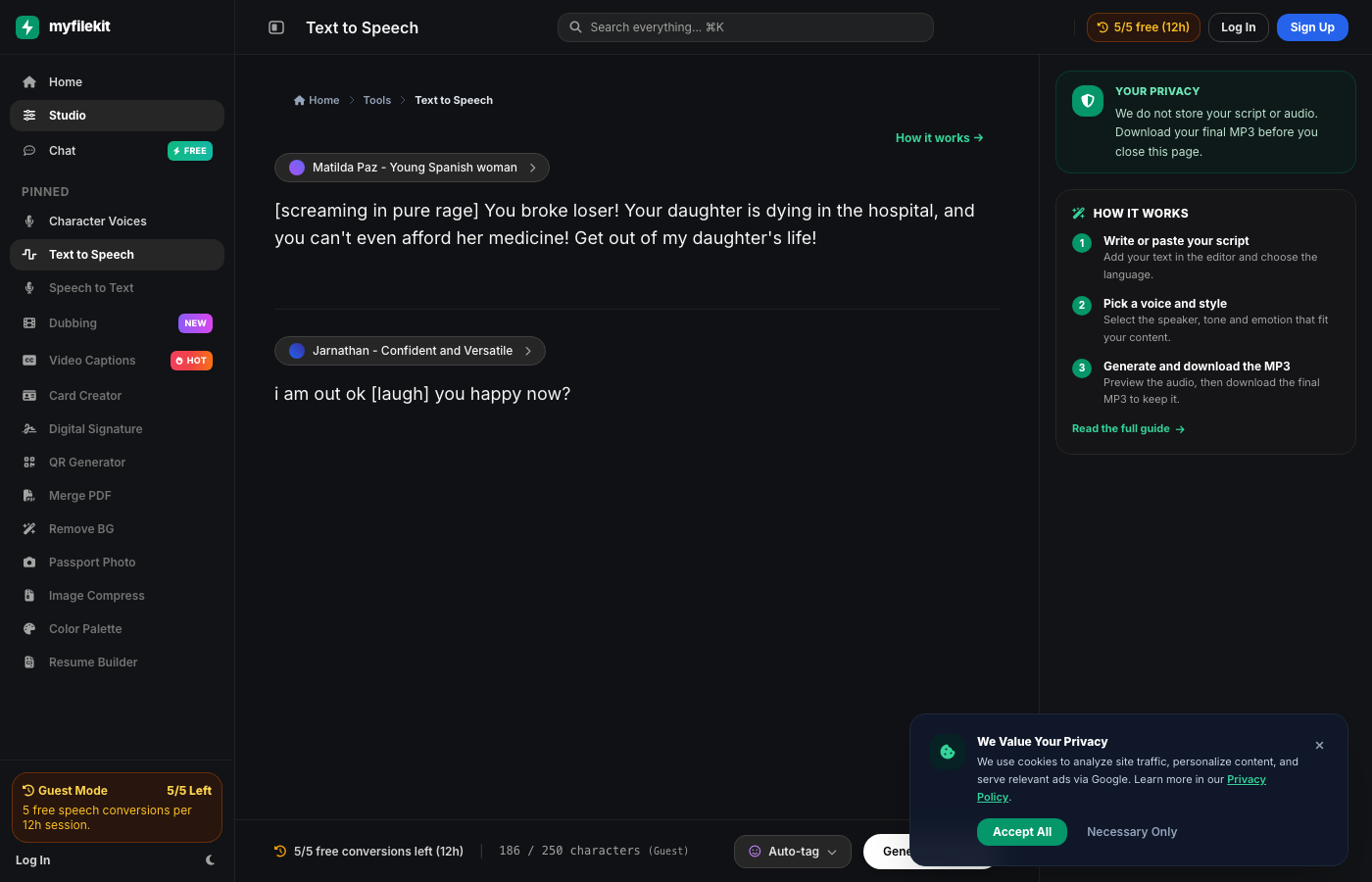
A good voiceover is not just text read aloud. It needs a clear script, a voice that fits the audience, natural pauses and a clean export. MyFileKit Text to Speech gives you those controls in the browser, and this guide shows a repeatable workflow you can use for videos, lessons, reels and product demos.
The goal is to sound like a real person explaining something useful, not like a robot reading a document. Start with a script written for the ear, choose one consistent voice, then listen to the full result before you download the final MP3.
What you need before you start
You only need a browser and your script. For a smoother result, keep the script in a text file so you can paste it in sections and compare versions.
- A finished script (or a clear draft)
- The language and accent you need
- A quiet place to review the preview
- A name for the final file so you can find it later
Step-by-step workflow
Follow the same order every time. It makes longer projects easier to review and keeps the voice consistent across a series.
- Paste the script into the editor and choose the language.
- Pick a voice that matches the audience and the topic.
- Generate a short section first and listen for pronunciation or pacing problems.
- Adjust punctuation, pauses or the voice if the first pass sounds rushed.
- Generate the full audio, preview it end to end and download the final MP3.
How to choose the right voice
The voice should support the message, not compete with it. A calm, lower-energy voice works well for tutorials and explainers. A brighter, faster voice can suit short social clips and product announcements.
Do not switch voices in the middle of a single piece unless the format calls for it. Consistency is what makes a series feel professional. For character work, use Character Voice instead so each persona keeps its own tone.
Write a script that sounds natural
Short sentences, concrete verbs and one idea per sentence are easier to listen to than long written paragraphs. Read the script aloud once before generating it; if you run out of breath, the listener will too.
- Use full stops instead of long comma chains.
- Write numbers and abbreviations the way you want them spoken.
- Add a short pause between sections with punctuation or a new paragraph.
- Cut repeated introductions and filler that only works on a page.
A simple example
A 20-second product demo can use three short beats: "Meet the new travel mug. It keeps drinks hot for six hours and fits in a standard cup holder. Download the free size guide and choose your colour." Generate the first beat, check the pace, then add the next two. This keeps the voice consistent and makes it easier to fix one line without regenerating everything.
What to check before publishing
Preview the full file on both headphones and a phone speaker. Background music can hide small pronunciation errors, so listen once without music. If a name or brand term sounds wrong, rewrite it phonetically and regenerate only that section.
- Names, brands and technical terms
- The first two seconds (the hook)
- The final call to action
- File format and volume before uploading
What to watch out for
- AI voices can mispronounce unusual names or technical terms; check them before publishing.
- A very long script may need to be generated in sections to keep the voice consistent.
- The free plan has daily limits; download the final MP3 before closing the page.
Try it in Text to Speech
Open the tool, follow the steps above and download your final file. No credit card, no subscription, no signup required to start.
Open Text to SpeechFrequently asked questions
Is the text to speech tool free?
Yes. You can start without a credit card or subscription. A few AI tools have daily free limits, and login is optional.
Can I download the final audio?
Yes. Preview the result and download the MP3 before you close the page. We do not keep a permanent copy of your script or audio.
Which voice should I choose?
Choose a voice that matches the audience and topic. Keep one consistent voice for a series, and use Character Voice when you need multiple personas.
Why does a word sound wrong?
AI voices can misread unusual names. Rewrite the word phonetically, add punctuation for a pause, and regenerate that section.