
MyFileKit guide · 7 min read
How to Transcribe Audio to SRT or VTT
Turn a recording into editable text and timed subtitles without sending files to a complicated desktop editor.
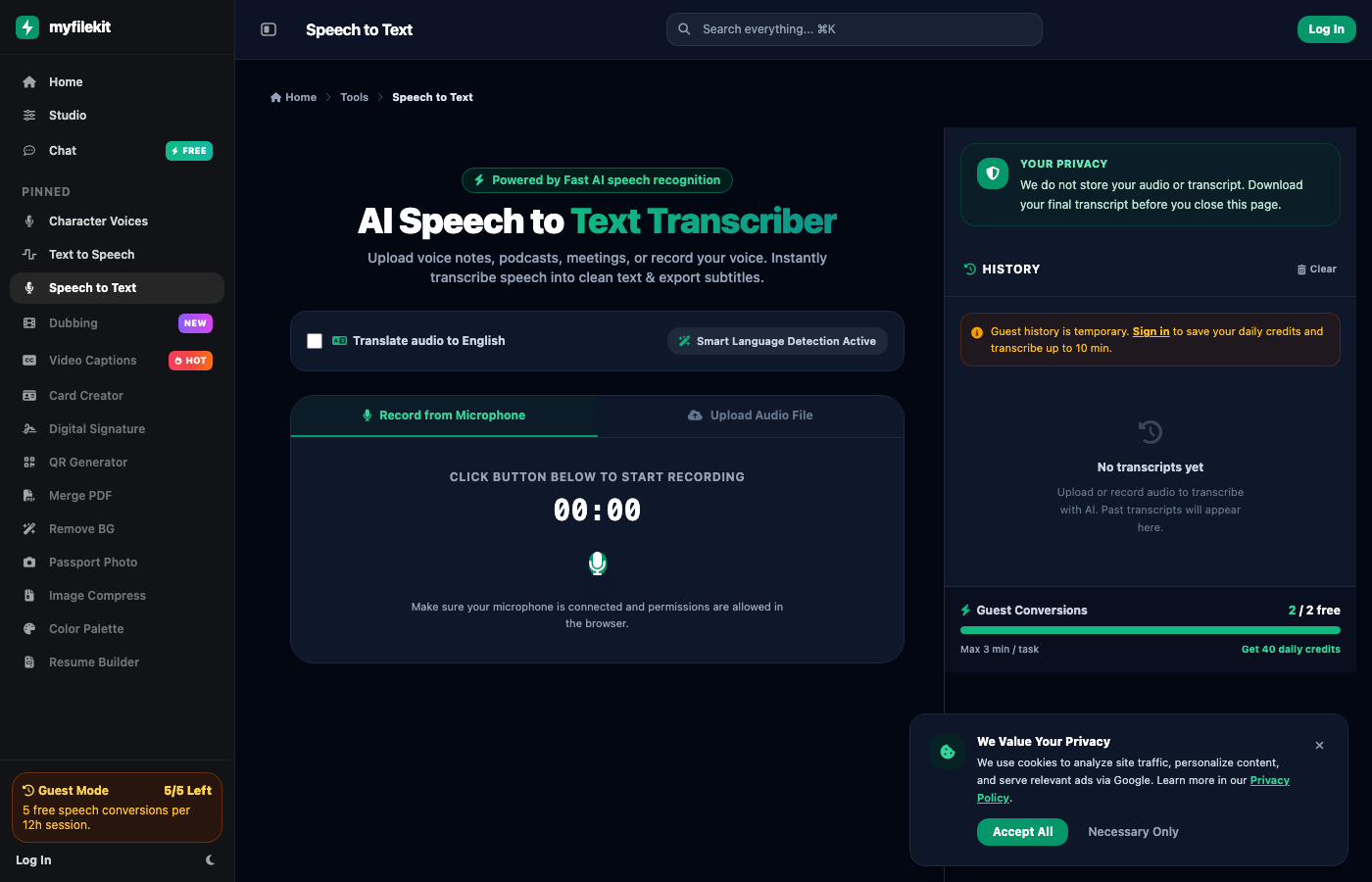
Subtitles are not just a transcript with timestamps. They need short lines, readable timing and a check against the actual audio. A fast automatic transcript is a useful first draft, but the final SRT still needs a human review.
This guide shows a practical workflow for interviews, lessons, meetings and short videos: record or upload, review the text, fix names and timing, then export SRT or VTT.
Record or upload
You can record directly from the microphone or upload an audio file. A clean recording with one speaker and low background noise produces a better first draft. For interviews, separate speakers where possible.
- Use a quiet room and a microphone close to the speaker.
- Avoid music under speech when you need accurate text.
- Keep the original recording until the subtitles are approved.
- For long files, work in sections.
Step-by-step
Generate the transcript first, then treat it as an editable draft. Do not publish the automatic result without checking names, numbers and the first and last lines.
- Upload or record the audio and choose the spoken language.
- Wait for the transcript and read it against the audio.
- Fix names, technical terms, punctuation and filler words.
- Check that each subtitle line is short enough to read on screen.
- Export SRT for most video editors, or VTT for the web.
- Play the video once with subtitles on before publishing.
Improve accuracy
Accuracy depends on the recording, the language and the vocabulary. A clear recording of a familiar topic will be much better than a noisy phone call with overlapping speakers. If a word is consistently wrong, add it to your review list and fix every occurrence.
- Use the correct language instead of auto-detect when you know it.
- Speak at a steady pace and avoid crosstalk.
- Check numbers, dates, names and brand terms manually.
- Keep sentences short; subtitles are read, not studied.
Timing and line length
A good subtitle appears just before the words are spoken and disappears when the line ends. Two short lines are easier to read than one long block. If a sentence runs across many seconds, split it at a natural pause rather than cutting a word in half.
- Aim for one idea per subtitle.
- Avoid lines that fill the whole screen.
- Give the viewer time to read before the next line.
- Check the final file in the editor, not only in the transcript view.
A short example
A tutorial says: "First, upload your recording. Then choose the language and start the transcription." In subtitles, this becomes two short lines with a small gap: "First, upload your recording." and "Then choose the language and start." The meaning stays the same, but the reading pace is much better.
What to watch out for
- Heavy background noise and overlapping speakers reduce accuracy.
- Automatic timing may need manual adjustment for fast speech.
- The free plan has daily limits; download the final transcript or subtitle file before closing the page.
Try it in Speech to Text
Open the tool, follow the steps above and download your final file. No credit card, no subscription, no signup required to start.
Open Speech to TextFrequently asked questions
Can I record directly in the browser?
Yes. Use the microphone option to record, or upload an existing audio file.
Which subtitle formats are available?
Export SRT or VTT, plus plain text for notes and editing.
How accurate is the transcript?
It depends on audio quality, language, accents and background noise. Always review names, numbers and technical terms before publishing.
Do you keep my audio?
The audio is processed to produce the transcript. Download the final file before closing the page; we do not keep a permanent copy.